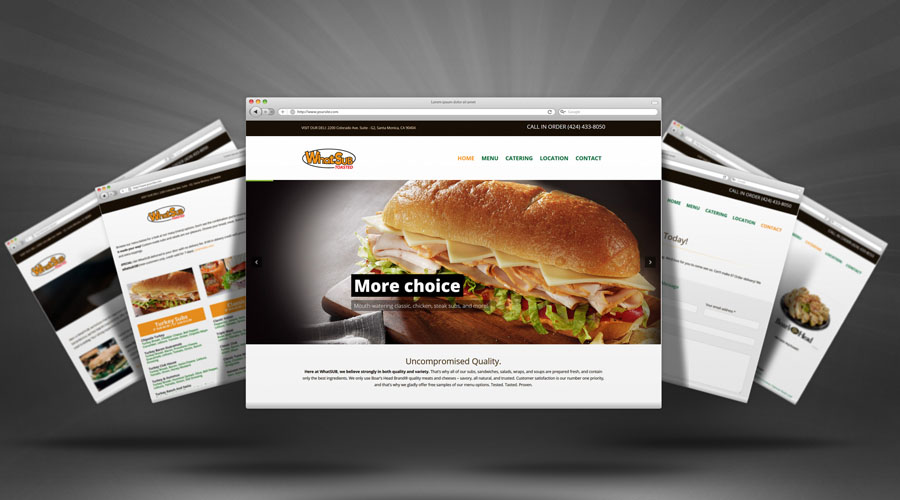


Keeping your website updated isn’t just a nice-to-have—it’s a must. When you regularly update your website’s theme, plugins, and WordPress core, you protect your site from security threats, improve performance, and deliver a smooth experience for your visitors. Let’s break down why this is so important and how you can easily manage updates, especially if you’re using WordPress and the popular Avada theme.
Why Updating Your Website Matters
- Security: Hackers are always looking for weak spots, and outdated software is an easy target. WordPress, Avada, and plugins frequently release updates to patch security holes. Skipping these updates leaves your site vulnerable to malware and attacks.
- Performance: Updates often include speed improvements and bug fixes. A slow or glitchy website can frustrate visitors, increasing bounce rates and hurting your Google rankings.
- Compatibility: WordPress is constantly evolving. Updating your theme and plugins ensures everything plays nicely together and with the latest version of WordPress.
- User Experience: A well-maintained site works smoothly across all devices—desktop, tablet, and smartphone—giving your visitors a positive impression of your brand.
How to Update WordPress, Avada, and Plugins
Step 1: Backup Your Site
Before doing any updates, always create a full backup of your site (files and database). You can use plugins like UpdraftPlus or BackupBuddy to automate this. If something goes wrong, you can quickly restore your site.
Step 2: Update WordPress Core
From your WordPress dashboard, go to Dashboard > Updates. If there’s a new version available, click “Update Now.” WordPress will handle the rest automatically.
Step 3: Update Your Theme (Avada)
Avada regularly releases theme updates with new features, improvements, and security patches.
– Go to Appearance > Themes or Avada > Updates in your dashboard.
– If an update is available, you’ll see a notification. Click “Update Now.”
– You may need to enter your Envato purchase code to get theme updates if you bought Avada from ThemeForest.
Step 4: Update Plugins
– Head to Plugins > Installed Plugins.
– Plugins with available updates will show a notice. Select the plugins you want to update and choose “Update” from the bulk action menu.
– Click “Apply” and WordPress will update them automatically.
Test Your Site Across Devices and Browsers
Once everything is updated, don’t forget to test your website! Check how it looks and functions on different devices (desktop, tablet, smartphone) and across popular browsers like Chrome, Firefox, Safari, and Edge. Make sure menus, buttons, and forms work properly. Testing regularly keeps your site user-friendly and helps you spot issues early.
Fix Broken Links and Keep Navigation Smooth
Broken links frustrate visitors and hurt your SEO. Use free tools like Broken Link Checker or online services like Dead Link Checker to scan your site regularly. Check every menu item, button, and internal/external link to make sure they point to the right page.
Need Help Staying Updated?
If managing updates and maintenance feels overwhelming, you’re not alone. Keeping your website secure and running well takes time and care. At Made to be Unique, I offer ongoing website maintenance services to handle updates, backups, security checks, and more — so you can focus on your business and enjoy peace of mind. Feel free to contact me, Crystal, for a personalized quote.